ProperDocs Installation
A detailed guide.
Requirements
ProperDocs requires a recent version of Python and the Python package manager, pip, to be installed on your system.
You can check if you already have these installed from the command line:
$ python --version
Python 3.8.2
$ pip --version
pip 20.0.2 from /usr/local/lib/python3.8/site-packages/pip (python 3.8)
If you already have those packages installed, you may skip down to Installing ProperDocs.
Installing Python
Install Python using your package manager of choice, or by downloading an installer appropriate for your system from python.org and running it.
Note
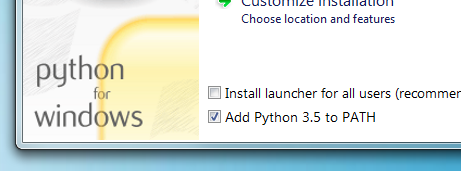
If you are installing Python on Windows, be sure to check the box to have Python added to your PATH if the installer offers such an option (it's normally off by default).
Installing pip
If you're using a recent version of Python, the Python package manager, pip, is most likely installed by default. However, you may need to upgrade pip to the lasted version:
pip install --upgrade pipIf you need to install pip for the first time, download get-pip.py. Then run the following command to install it:
python get-pip.pyInstalling ProperDocs
Install the properdocs package using pip:
pip install properdocsYou should now have the properdocs command installed on your system. Run properdocs
--version to check that everything worked okay.
$ properdocs --version
properdocs, version 1.2.0 from /usr/local/lib/python3.8/site-packages/properdocs (Python 3.8)
Note
If you are using Windows, some of the above commands may not work out-of-the-box.
A quick solution may be to preface every Python command with py -m
like this:
py -m pip install properdocs
py -m properdocs
See information about the Python Launcher for Windows.
Or you may need to edit your PATH environment
variable to include the Scripts directory of your Python installation.
Recent versions of Python include a script to do this for you.